October 25

Websites Worth Sharing: Phonics Resources

I had a teacher request online phonics resources. This is what I shared with her:

Phonics Hero– Their core curriculum is free for teachers, but you have to create a Teacher account to access this. There is an add-on phonics curriculum

Weblink: https://phonicshero.com/free-for-teachers-new/

Phonics games: https://phonicshero.com/phonics-games/

The paid curriculum- you can get a trial

https://phonicshero.com/no-prep-phonics-lessons/

Teach Your Monster to Read:  https://www.teachyourmonster.org/

PBS Media– search results for ELA/K-2/Reading Foundations

https://kcts9.pbslearningmedia.org/search/?rank_by=recency&selected_facet=subject:1880,2104&selected_facet=media_type:Interactive&selected_facet=grades:K-2

Some samples:

Word Walls- https://kcts9.pbslearningmedia.org/resource/124f0c1d-e1c9-4476-8fec-8403c1fa640d/word-walls/ (on the side you’ll see word walls 2- these are sight words)

Zach and Friends: https://kcts9.pbslearningmedia.org/resource/d83ce154-e598-43d0-bf7a-ee96d200a3fb/zach-and-friends/

Read Write Think– Here are some of their primary interactive activities for phonological awareness: https://www.readwritethink.org/search/grades/796/grades/796/learning_objectives/788/grades/796/grades/796/learning_objectives/788/type/643/grades/796/grades/796/grades/796/grades/796/learning_objectives/788/learning_objectives/788/type/651

Starfall– Most teachers are familiar with this, but I’ll add it as a reminder. https://www.starfall.com/h/ltr-classic/

I know some teachers who use the free version of SplashLearn: https://www.splashlearn.com/features/teachers

Have a favorite of your own to share? Paste a link in the comments below.
March 2

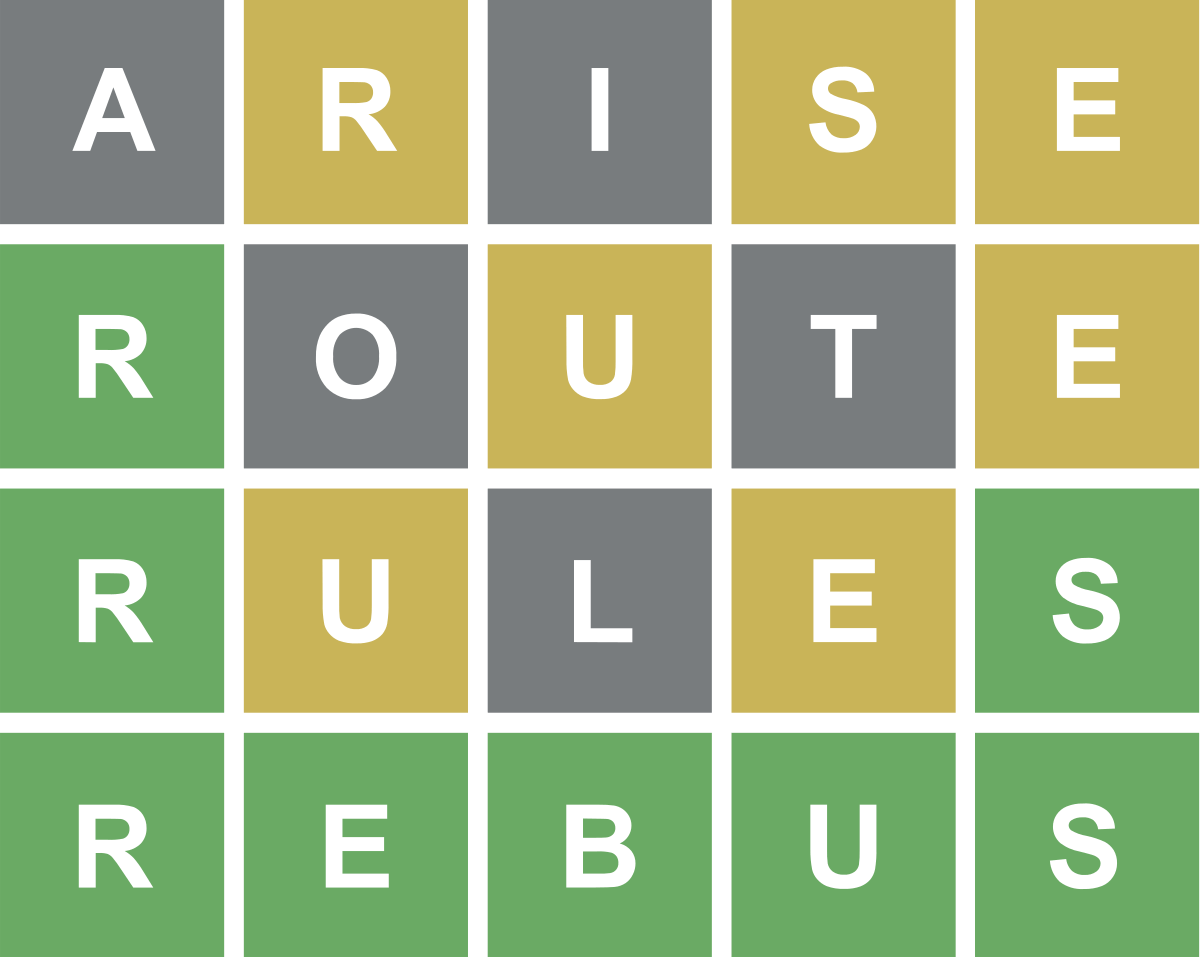
Website Worth Sharing: Custom Wordle

Are you a Wordle fan? Even if you’re not, you might want to check out the custom Wordle site that allows you to make your own puzzles at https://mywordle.strivemath.com/

Just enter a word and it will make a custom Wordle for you and provide a puzzle that you can project or share as a link in Google Classroom. You can display it for your class as an opener or lunch activity and have kids solve it on your SMARTboard or Interactive projector- or if you don’t have one of those, they can call out their guesses, and you can enter them on your laptop.

Primary teachers could create short 3 or 4 letter Wordles when teaching about word families. If you teach older students, you could use more complex words or focus on words with certain prefixes or suffixes. You can give them clues to reinforce concepts you are teaching such as “It is plural word” or “it is a compound word”.

You could also use vocabulary words that you are studying or words from a spelling list. It would be a good fit for World Language folks.

Math Teachers: Don’t feel left out by the Wordle craze. This one, while it’s not customizable like the one I sent out earlier today, is definitely for you!

https://nerdlegame.com/

Also Mini Nerdle for shorter sequences: https://mini.nerdlegame.com/ and Pro Nerdle https://create.nerdlegame.com/ (where you can create your own challenge.)

Here is a version developed by Kelso Grad, Eric Lemiere, that lets you have an unlimited amount: http://lemierecs.com/Wurtle%20Game/wurtle.html

Check out this article for more ideas: https://www.eschoolnews.com/2022/06/06/how-teachers-use-wordle-for-next-level-engagement/2/

February 26

Website Worth Sharing: lalilo

I had a couple of primary teachers highly recommend an early reading skills (phonics, word families, sight words, comprehension) interactive website: https://www.lalilo.com/ When students start out on the site, they complete a placement test which then determines their path, so it’s a nice site for differentiation. After they complete a certain number of activities successfully, they are rewarded with a story.

This would be a great option for your students during your stations or small group activities. Some of the reviews I read mentioned that the initial interface could use more directions, so it might be good to walk the whole class through it using your laptop/projector prior to having them do it on their own. There are a lot of audio supports, so you’ll want headphones available. There are also opportunities for students to speak, but the Chromebook microphones should work fine for that part.

This site is free for teachers (there is a fee for school or districtwide use). If you want to take a look from a student point of view, you can check out my class to give it a try.

Start at https://www.lalilo.com/
Click on the Log In Option,
Choose “Student” and enter school code BVINQC
Start with the Mrs. Sargent Class and choose a student (it doesn’t matter which one.)

If you like it, it’s pretty quick to set up a class. Just go back to the start and Login as a teacher and follow the prompts. Once logged in as a teacher, you have a “Student View” option that allows you to demonstrate it without logging in as a student.

Here is an intro video: https://www.youtube.com/watch?v=p1_jdpg_LqU
And more in depth “how-to” if you want to get started with it https://www.youtube.com/watch?v=8XxFZDuwBxc

April 24

Website Worth Sharing: Seesaw

If you’d like to explore an easy tool for students to use to post/share online multimedia projects, you might want to look into Seesaw: https://web.seesaw.me/ . Teachers create accounts in Seesaw and add student folders. Students who are using the same Google account login with a code that teachers generate for each session (no usernames/passwords to remember!). Students with individual Google accounts login with their Google accounts. Once students enter the Seesaw site, there is a big green plus sign they can click on to create a project. The projects can be pictures (which can have audio, labels, drawings, etc. attached), video,  drawing, Google Drive Files, Notes, and links. You are able to approve the projects before they are posted, which is a good idea. This could be used for small projects, or to create a year long student portfolio of digital work.


Seesaw even had ready-made projects that you can assign to the students. The projects walk the students through the steps needed to create the activities.

I was able to watch Seesaw in action with a group of 3rd graders (thank you to Mackenzie McCabe!) The all used the same Google login (their classroom one) to logon to the Chromebooks, and after the first student entered the class code, they all were able to get in to create their project by just navigating to the Seesaw site using the bookmark. The students easily followed the directions to create the project (audio recording of a reading passage attached to an image.)

There is an option to invite families to join (they only see their child’s folder).

Here is a quick video with the basic setup instructions: https://www.youtube.com/watch?v=DSxciQ7S3rw&t=3s

They also have an entire YouTube Channel full of training videos and implementation ideas: https://www.youtube.com/channel/UCYUfnb7MIsGald-Xtig9Umw

March 1

Website Worth Sharing: Flipgrid

Gathering and evaluating student feedback can often be time consuming. Flipgrid is an interesting tool that gives you an opportunity to gather verbal feedback into one place. Flipgrid allows you to create a “Grid” (think classroom or collection) and add “Topics” (think questions or prompts) and allow your students to respond in video format (there is a 90 second limit- but that can be adjusted in your settings). Students can share their own feedback and also see what their classmates have said. This would be good for speech teachers and ELL teachers who want to give their students the opportunity to respond orally to questions. Teachers can create a free account, which allows them to create one “Grid” and then post multiple topics. Once the topic is created, it generates a unique code that students use to respond to your topic. They require that you collect a parent permission form if using this with students under 13 or using the PLC/Public option with students under 16. https://static.flipgrid.com/docs/Flipgrid_consent_form.pdf 

  1. School Email Domain – If your students have school emails, use this option for your Grid. Students enter the Flip Code and verify their email using Microsoft or Google.
  2. Student ID List – If your students don’t have emails, use this option. Students enter the Flip Code and input their Student ID #, or scan a QR code for verification.
  3. PLC and Public – Allow anyone to view videos with just the Flip Code. To record a video, participants verify their email address via Microsoft or Google, including personal @outlook.com and @gmail.com emails.

Teachers have the option of choosing from several settings including the ability to moderate the posts so they have to be approved prior to appearing for everyone to see. This would be a good idea if students are recording unsupervised. I tested this out on a Chromebook and it worked great. It’s also smartphone friendly if they download the app.

If you want to give it a try, respond to my question: https://flipgrid.com/fa4a8d
The password is sargent (I don’t recommend posting passwords online, but I’ll make an exception in this case.)

Here’s a nice 3 minute YouTube video that explains how it works: https://www.youtube.com/watch?v=8aXsIYYEgRY&t=0s&index=8&list=PL3FMVFVAvQFRyJSYA4Feu9qJLZvb_oLWd

And another that shares directions for students: https://www.youtube.com/watch?v=0yYFJgbfLTE

November 8

Website Worth Sharing: #kinderchat Symbaloo Webmixes

A Symbaloo webmix is a collection of weblinks all displayed in a visual, tiled format. The user “kinderchat” has created a collection of ABC weblinks in Symbaloo that you might find useful:

http://edu.symbaloo.com/mix/abc You can post this link to an eBoard or bookmark it on your classroom Google account for easy access for your students.

If you want to see the other webmixes created by kinderchat here: http://edu.symbaloo.com/profile/kinderchat . Note that there are 3 pages of webmixes.

The Youtube videos are linked through SafeshareTV which removes the ads and thumbnails of other videos, so that makes them especially nice. A few, like the National Geographic books, require logins so those won’t be useful for you. I also found some eBooks that stop a few pages in as they are “samples” and not the full books. Be sure to test the links before recommending them to your students.

kinderchat

October 18

Website Worth Sharing: Unite for Literacy

Primary and World Language Teachers: I found a cool website that will support early readers and those learning a new language. Unite for Literacy http://www.uniteforliteracy.com/ has a collection of picture books that can be read aloud if students opt to click on the link underneath the book (it has to be done for each page). The default offers book narration in English- which is perfect for primary readers-, but by clicking on the Narration option in the upper lefthand corner, users can expand the option to include a variety of other languages (including ASL Megan!). Once a language is selected, the users have the option of hearing the narration in English or the other language. The screenshot below has Spanish selected. The text will always be in English. This is a great way to support our ELL population as well as emergent readers and those learning a new language.
uniteforliteracy


April 20

Website Worth Sharing: Kiddle.co

Google is a great resource for looking up all kinds of information, but the results aren’t necessarily “kid-friendly”, especially at the primary level. The next time your stkiddleudents want to research a topic, why don’t you have them “Kiddle” it instead of Google it?  When they search at http://www.kiddle.co/  (that’s .co NOT .com or .org ) the results are screened to be safe and kid friendly. They are ranked by difficulty with the more kid-friendly results in the top 3. The best thing is that the findings are image based, to help your students “see” their results. There are still ads, but they are placed on the side so you can teach your students to stay to the left. It even blocks certain searches, so if your kids use “not for school” words, it will redirect them.

Don’t forget to show them the filters located under the search bar that allow them to specifically search for images, news, or videos. The best part is that when you filter for videos, as far as I can tell, the first batch of results are NOT on YouTube. They are instead videos from sites like National Geographic, School Tube, and WatchKnowLearn.

October 5

Website Worth Sharing: Storyline Online

Primary Teachers,

Storyline Online http://www.storylineonline.net/ is a great website sponsored by the Screen Actor’s Guild that allows your students to listen to picture books being read aloud by actors. One frustration I’ve had with the site in the past is that their videos were housed on YouTube so it was challenging for our students to have access. We weren’t the only school with this issue, so they have developed a workaround. Now when you choose a book, there is a “Select Player” option on the upper left. If you select “SchoolTube” it should work for our students.

By putting a link on your Chromebook bookmark bar, adding a link to your eBoard, or a shortcut on your computer desktop, you can provide your students with a variety of great children’s books  (Here’s a list https://storylineonline.net/library/ ) being read by talented folks (Who wouldn’t want to hear Betty White read “Harry the Dirty Dog” ?)

March 4

Apps Worth Investigating: WriteReader

CaptureThe WriteReader App https://itunes.apple.com/us/app/write-to-read/id590707197?mt=8

was developed and is highly used in Denmark to support young children as they learn to write. It is recommended for students aged 3-10 years old and utilizes Speech to Text features to create books. There is a basic version (limits the number of books) which is free and the Pro version (unlimited books) is available to purchase with VPP credits for $4.99.

On the iPad app, students can record and tell a story in their own words, which is then put into writing through a speak-to-text feature. They can also type out the story on a phonetic keyboard. Based on the student’s version, parents or teachers can then write out text underneath, so the young student can learn to read by associating objects and characters in their stories with the right words. Adults can then publish the books to either a private or public audience.